Browse all available models
Roo Code
Configure Featherless AI's extensive catalog of open-source models in Roo Code. Access DeepSeek, Qwen, and other high-performance models through an OpenAI-compatible API.
Overview
Featherless AI provides seamless access to a vast catalog of high-performance open-source models, enabling you to power Roo Code with cutting-edge AI capabilities. Choose from specialized coding models, general-purpose LLMs, or reasoning-focused models - all through a single, OpenAI-compatible API.
Key Benefits:
🚀 Extensive Model Catalog - Access dozens of open-source models without managing infrastructure
💰 Flexible Pricing - Various subscription tiers to match your usage needs
⚡ No Setup Required - Models are ready to use immediately, no deployment needed
🎯 Specialized Options - Choose task-specific models for optimal performance
Prerequisites
Before you begin, ensure you have:
Visual Studio Code installed
Roo Code extension installed and activated
A Featherless AI account (view pricing)
Getting Started
Step 1: Obtain Your API Key
Visit Featherless AI: Navigate to https://featherless.ai
Create or Sign Into Your Account: Click "Sign Up" if you're new, or "Sign In" for existing users
Access API Keys Section: Once logged in, go to your account dashboard and find the API Keys section
Generate New Key:
Click "Create New API Key"
Give it a descriptive name (e.g., "Roo Code Integration")
Click "Generate"
Save Your Key: ⚠️ Important: Copy the API key immediately and store it securely. For security reasons, it will only be displayed once.
Step 2: Choose Your Model
Visit the Featherless Model Catalog to explore available options. Each model page displays:
Model ID (needed for configuration)
context size
Capabilities and specializations
Token usage rates
For subscription details and pricing, visit the Featherless Pricing Page.
Configuration
Setting Up Roo Code
Open Roo Code Settings
Click the Roo Code icon in the VS Code sidebar
Click the settings gear icon (⚙️) in the Roo Code panel
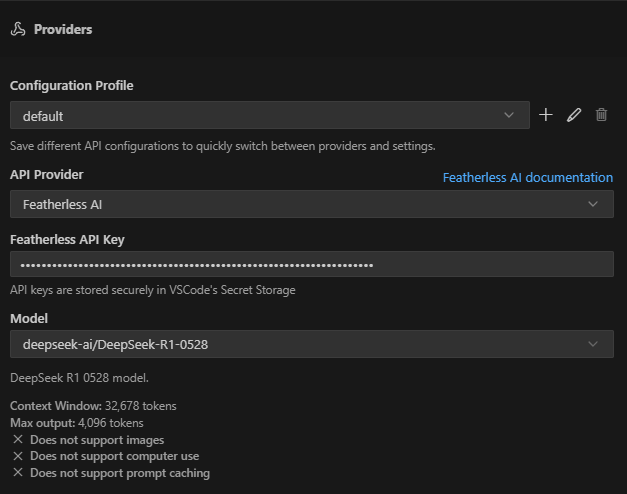
Configure API Connection
Setting
Value
API Provider
Featherless AIOpenAI API Key
Your Featherless API key
Model
Model ID from catalog (e.g.,
deepseek-ai/DeepSeek-V3-0324)Save and Test
Click "Save" to apply settings
Test with a simple prompt to verify connection
Supported Models
Featured Models
DeepSeek Models
deepseek-ai/DeepSeek-R1-0528🧠Advanced reasoning with
<think>tag supportIdeal for complex problem-solving
Context: ~32K tokens
deepseek-ai/DeepSeek-V3-0324General-purpose powerhouse
Excellent for varied coding tasks
Context: ~32K tokens
Instruction-Following Models
moonshotai/Kimi-K2-InstructBalanced general-purpose model
Good at following complex instructions
Context: ~32K tokens
openai/gpt-oss-120bLarge parameter count for nuanced understanding
Versatile across different tasks
Context: ~32K tokens
Model Selection Guide
Use Case | Recommended Models | Why |
|---|---|---|
Complex Reasoning | DeepSeek-R1 series | Built-in reasoning capabilities with step-by-step thinking |
Code Generation | Qwen3-Coder models | Specialized training on code repositories |
General Tasks | DeepSeek-V3, GPT-OSS | Balanced performance across various domains |
Quick Iterations | Smaller models | Faster response times for rapid prototyping |
Advanced Configuration
Optimizing Performance
context size Management
Set context size appropriately for your project size
Larger contexts = better understanding but slower responses
Start with default and adjust based on needs
Model-Specific Settings
For Reasoning Models: Enable R1 parameters
For Code Tasks: Consider specialized coding models
For Quick Edits: Use smaller, faster models
Troubleshooting
Common Issues and Solutions
Issue | Possible Cause | Solution |
|---|---|---|
Connection Failed | Invalid API key | Verify key is copied correctly without spaces |
Model Not Found | Incorrect model ID | Check exact spelling from model catalog |
Slow Responses | Large context/complex task | Reduce context size or use faster model |
Incomplete Output | Token limit reached | Increase max output tokens setting |
Authentication Error | Expired/revoked key | Generate new API key from dashboard |
Debug Checklist
API key is valid and active
Base URL is exactly
https://api.featherless.ai/v1Model ID matches catalog listing exactly
context size doesn't exceed model limits
Network connection is stable
Roo Code extension is up to date
Best Practices
1. Model Selection Strategy
Start with general-purpose models for exploration
Switch to specialized models for specific tasks
Use reasoning models for complex architectural decisions
2. Prompt Engineering
Be specific and provide context
Include examples when possible
Break complex tasks into steps
4. Performance Optimization
Cache frequently used completions
Batch similar requests when possible
Use appropriate model size limits for tasks
FAQ
Q: What subscription plans are available? A: Featherless offers various subscription tiers to match different usage needs. Visit the pricing page for current plans and details.
Q: Can I switch models mid-session? A: Yes! Simply update the model ID in settings and save. The change takes effect immediately.
Q: Do models support image inputs? A: Currently, image support is not available through the Featherless integration.
Q: How do I know which model to choose? A: Start with recommended models above, then experiment based on your specific needs. The model catalog provides detailed capabilities for each option.
Additional Resources
Model Catalog
Roo Code documentation
Roo Code documentation page
Blogs
Read our blog on how to supercharge your development workflow with Roo Code
Last edited: Aug 28, 2025